Timeline
Venue Admin
The Timeline section lets you create reusable schedules for your events. Each template defines the day's program points and the information fields the planner will need to fill in.
What the timeline is for
The timeline is the event's day-of schedule. Through it you can:
- define the time sequence of the day (ceremony, cocktail hour, dinner, cake cutting, etc.),
- request specific information from the planner for each point (song name for the first dance, text for the tableau, etc.),
- manage a collaborative workflow of filling, revision and approval.
Timeline Templates
Templates are predefined models you can quickly apply to an event, avoiding the need to recreate the schedule every time.
Template list
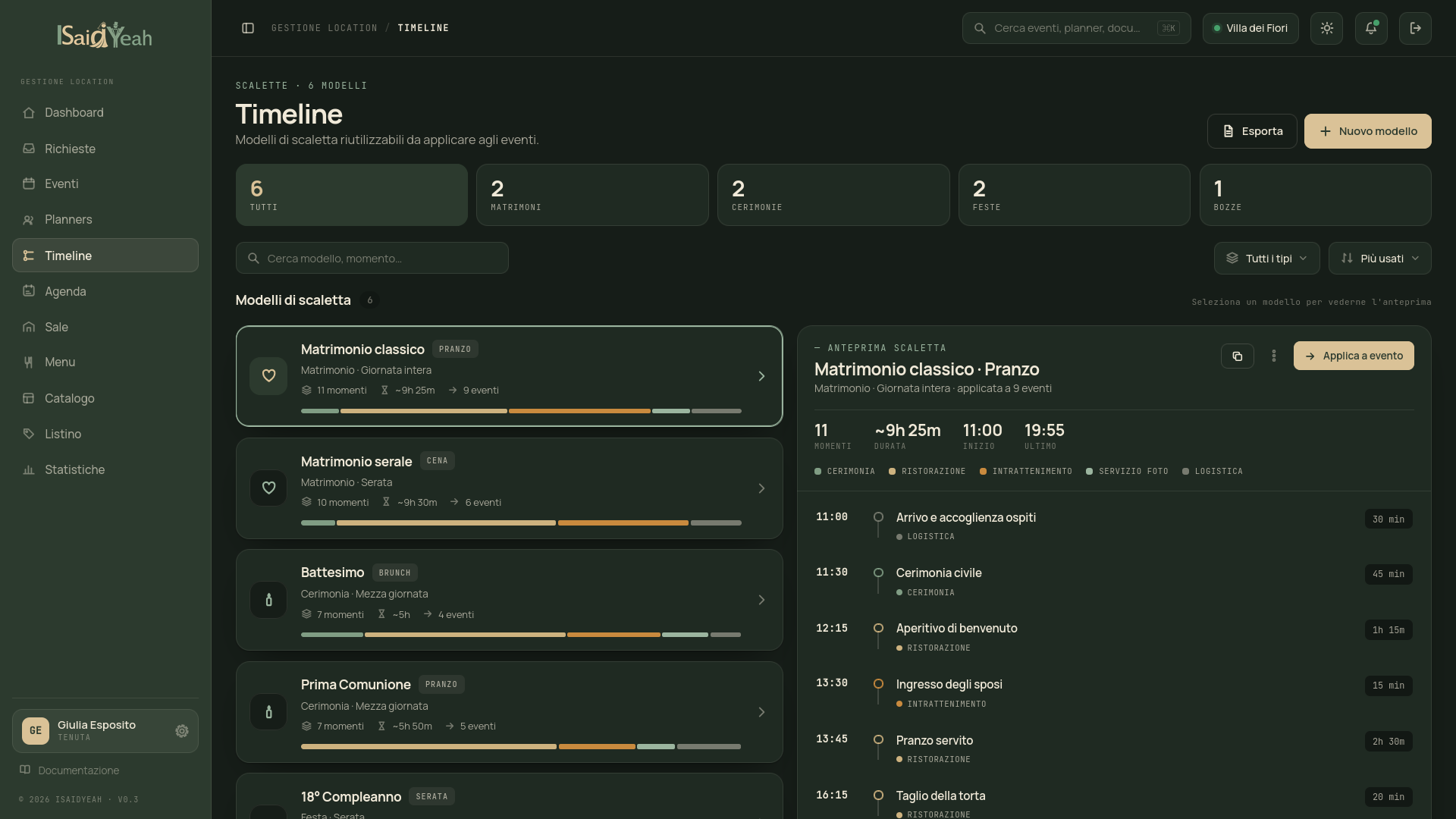
From the sidebar, click "Timeline" to access the template list. Each template shows name, associated event type and number of points.
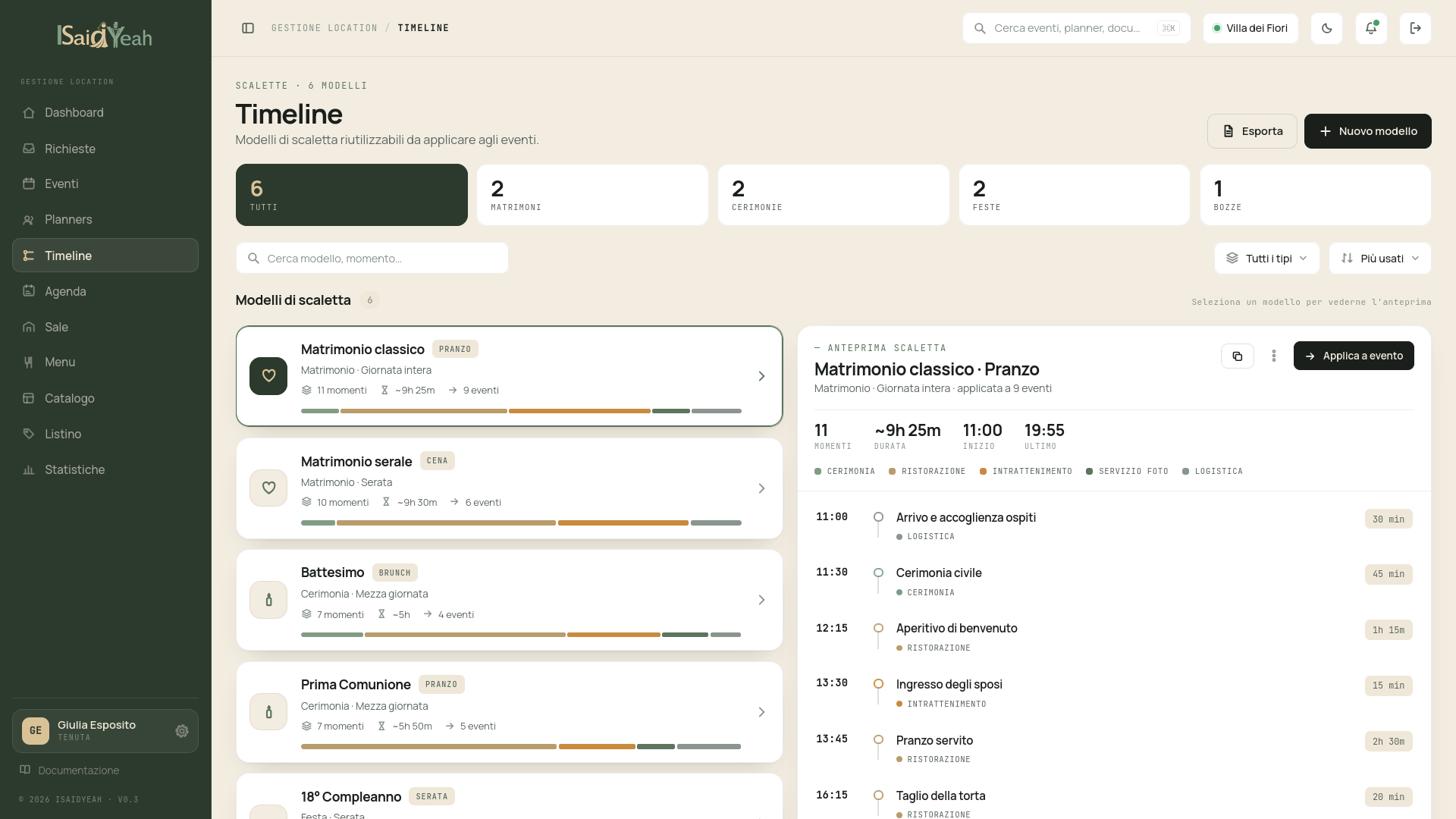
Creating a template
- Click "New template"
- Fill in the information - Name — descriptive name (e.g., "Classic Wedding", "Civil Ceremony") - Event type — the event type it's designed for (wedding, communion, baptism, birthday, corporate, ceremony, other) - Description (optional) — an internal note to remember the template's purpose
- Save the template The editor will open where you can add schedule points.
Managing template points
Each template is made up of nodes (schedule points). For each node you can configure:
| Field | Description |
|---|---|
| Label | Point name (e.g., "Ceremony", "First dance") |
| Start time | Expected time (optional in templates) |
| Duration | Estimated duration in minutes |
| Location | Where it takes place (e.g., "Garden", "Main hall") |
| Planner note | Message visible to the planner to guide them |
| Internal note | Note visible only to the admin, not the planner |
| Locked | If enabled, the planner cannot fill in this point's fields |
| Custom fields | Information to request from the planner |
Custom fields
For each node you can define one or more fields the planner will need to fill in. Available field types are:
| Type | Usage |
|---|---|
| Text | Free-form answers (e.g., "Song name") |
| Time | Time selection |
| Yes / No | Binary choice (e.g., "Do you want a rice toss?") |
| Number | Numeric value (e.g., "How many musicians?") |
| Single choice | One option from a predefined list |
| Multiple choice | Multiple selectable options from a predefined list |
For single and multiple choice fields, you can define the list of available options.
Smart reuse
Create generic templates by event type. When you apply them to a specific event, you can customize the schedule without modifying the original template.
Applying a template to an event
Templates are applied from the Timeline Tab in event detail. You can:
- Generate from template — creates the event timeline from a template, overwriting any existing content.
- Merge a template — adds the template's points to an existing timeline without deleting previous ones.
- Save as template — turns an event's timeline into a new reusable template.
Templates and events
Applying a template copies the points into the event: subsequent changes to the event timeline do not alter the original template and vice versa.