Pricing
Venue Admin
The Pricing section lets you configure default price lists by event type. When you create a new event, the matching price list is applied automatically, pre-filling prices and speeding up financial setup.
Overview
From the sidebar, click "Pricing" to access pricing management. Cards are organized by event type and show name, calculation mode, configured prices and whether the list is the default.
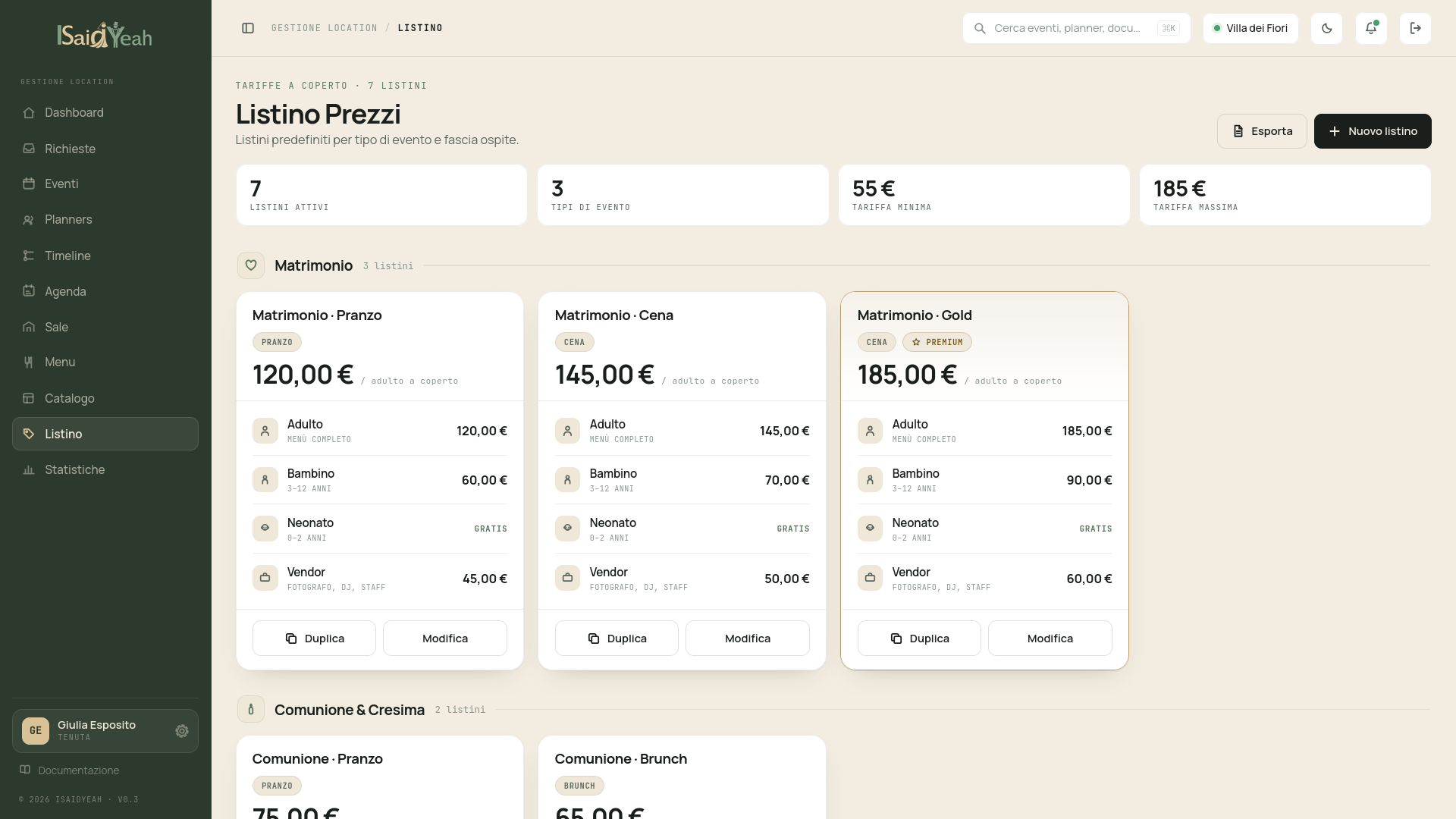
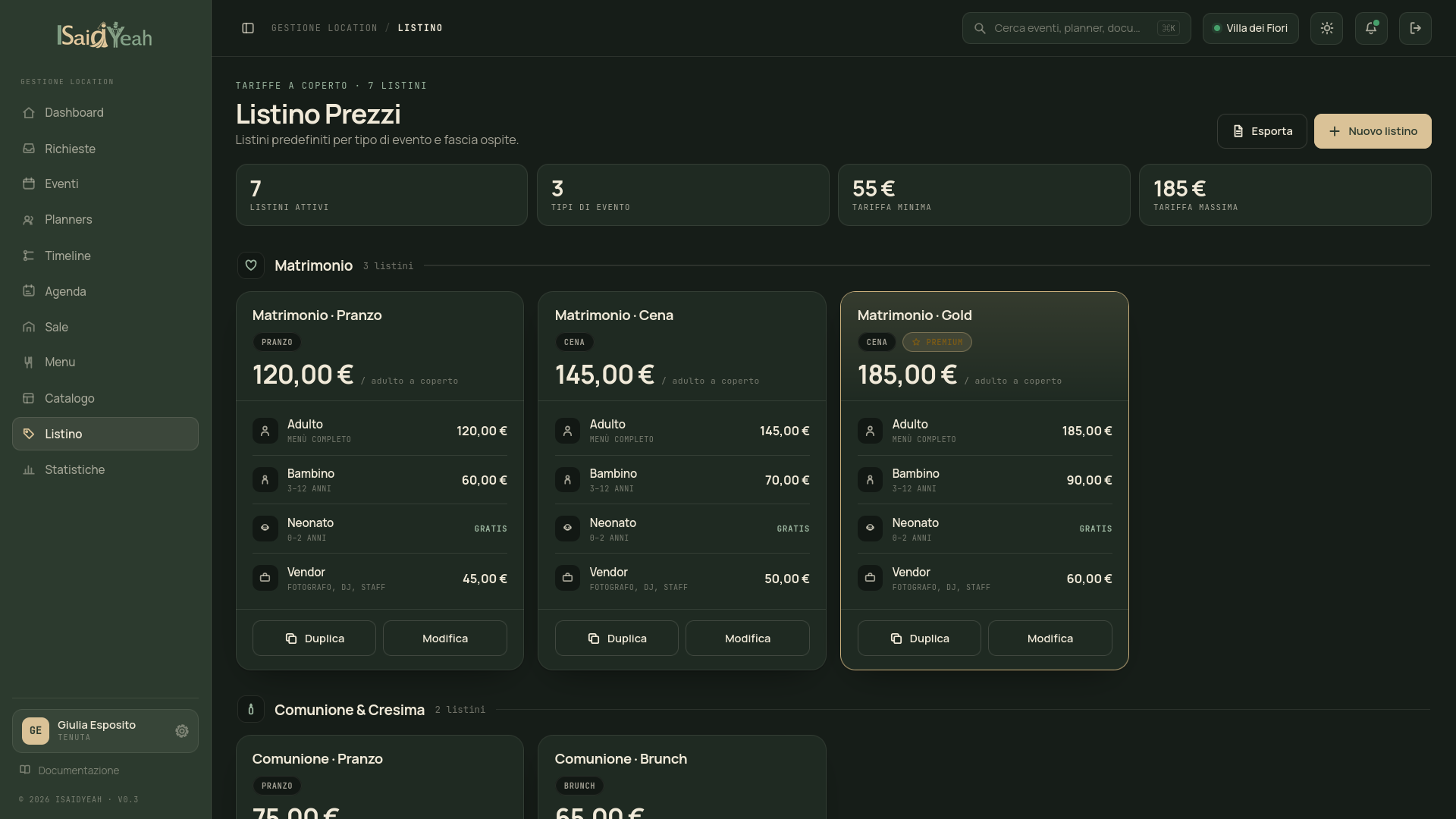
Calculation Modes
Each price list uses one of two available calculation modes:
| Mode | How it works |
|---|---|
| Per person (fixed price) | A fixed price per guest category, regardless of the menu chosen |
| Per menu (price from dishes) | The price is calculated based on dishes selected by the planner, with an optional cover charge |
Creating a price list
- Click "New Price List"
- Fill in the basic information - Name — descriptive name (e.g., "Standard Wedding", "Premium Communion") - Event type — the event type it applies to - Calculation mode — choose between "Per person" and "Per menu"
- Configure prices The configuration changes based on the chosen mode.
- Set as default (optional) Check the box to make this the default price list for the chosen event type. The default list is automatically applied to new events of that type.
"Per person" configuration
In per-person mode you set a fixed price for each guest category:
| Category | Description |
|---|---|
| Adult | Base price for each adult guest |
| Child | Price for children (if not set, adult price applies) |
| Infant | Price for infants (if not set, free) |
| Vendor | Price for vendors at the event (if not set, free) |
"Per menu" configuration
In per-menu mode the price depends on selected dishes. You can configure:
- Cover charge — fixed per-person cost on top of dish prices
- Child and infant rates — two strategies available:
- Percentage discount — a percentage discount on the menu total (e.g., children −50%, infants −100%)
- Fixed price — a fixed amount regardless of the menu
- Vendor — fixed price (if not set, adult price applies)
Price list actions
Each price list can be edited, duplicated or deleted via the icons on its card.
| Action | Description |
|---|---|
| Edit | Update name, prices or mode |
| Duplicate | Create a copy of the list (useful for variants) |
| Delete | Remove the list. Events already using it are not affected |
Default price list
Only one default price list can exist per event type. Setting a new one as default automatically removes the flag from the previous one.
Application to events
Price lists are applied in two ways:
- Automatically — when creating an event, the default price list for that event type is applied if one exists.
- Manually — from the Finances Tab in event detail, you can select and apply any available price list for the event type.
After application, the event's prices can be further customized without modifying the original price list.