Event Detail
Venue Admin
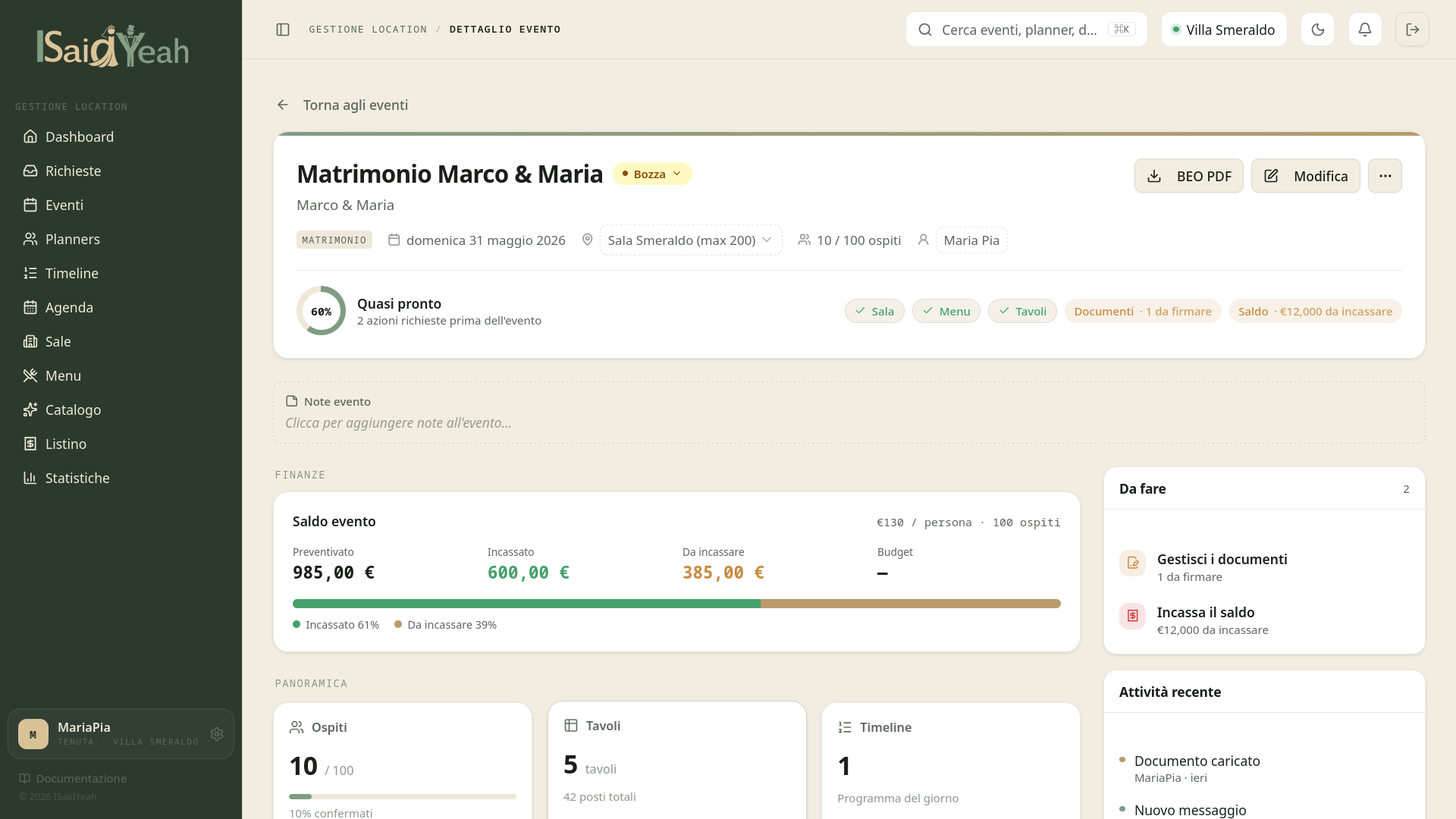
The event detail page is the operations center for each event. From here you manage all aspects: guests, tables, timeline, selections, finances, documents, messages and appointments.
Overview
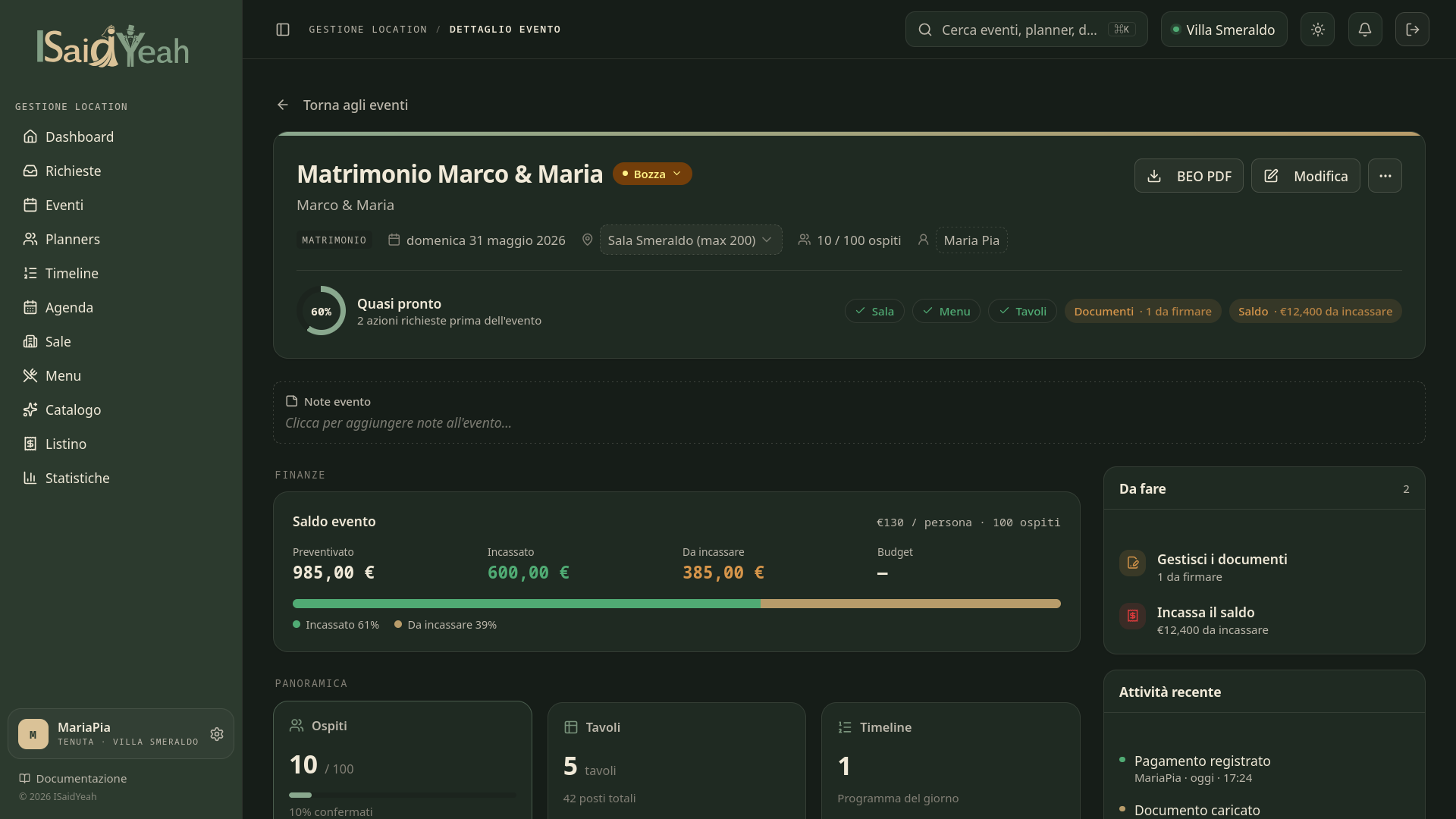
The page header shows the main event information: title, date, hall, status and summary cards with KPIs (expected/confirmed guests, total cost, deposit paid).
Operational Tabs
Content is organized in tabs, each dedicated to a specific aspect of the event.
Guests Tab
Manage the entire guest list for the event. You can add guests individually with all details (name, type, side, dietary restrictions, allergies), manage RSVP status (pending, confirmed, declined), filter by any criteria and export the list. Statistics cards at the top show a real-time summary of confirmations.
Guest side
The "Side" field (groom, bride, common) is only available for wedding type events. For other event types this field is not shown.
Tables Tab
Configure tables and assign guests. You can create tables with name, shape (round, rectangular, imperial, oval) and seat count, assign guests to tables and mark the head table. The map view offers an interactive visualization of the layout.
Timeline Tab
Manage the event's day-of schedule. If no timeline exists yet, you can create an empty one or apply one of your templates. The timeline is made up of points (nodes), each with a label, time, duration, location and custom fields for the planner to fill in.
Status workflow: the timeline follows a lifecycle that controls its visibility and editability.
| Status | Meaning |
|---|---|
| Draft | Visible only to you. You can edit it freely |
| Shared | Also visible to the planner, who can fill in the requested fields |
| Complete | All compilable fields have been filled by the planner. Automatic status |
| Approved | All points have been verified. You can still reopen or lock it |
| Locked | The timeline is final and no longer editable |
For each point you can: approve the planner's answers, request a revision with an explanatory note, fill in fields on behalf of the planner if needed, and undo an approval already given.
Template actions: from the actions menu you can merge an additional template into the existing timeline or save the current timeline as a new reusable template. For more details, see the Timeline section.
Selections Tab
View the selections made by the planner from the menu and catalog: dishes chosen by course with quantities and notes, and selected catalog items (mise en place, tableau, cake, floral extras).
Finances Tab
Manage the entire financial aspect of the event. The tab is composed of multiple sections.
Pricing configuration: you can apply one of the predefined price lists or manually configure prices. The calculation mode (per person or per menu), rates for adults, children, infants and vendors, and the agreed budget are customizable for each event. In "per menu" mode you can also set the discount strategy for children and infants (percentage or fixed price) and the cover charge.
Menu dishes: visible only in "per menu" mode, shows the dishes selected by the planner with the dish subtotal, the optional cover charge and the resulting base price per person.
Confirmed covers: shows the cost breakdown by confirmed guest category (adults, children, infants, vendors), each with count, unit price and line total.
Catalog services: lists the catalog items selected by the planner (mise en place, cake, floral extras, etc.) with quantities and cost, and the extras subtotal.
Payment records: record received payments specifying amount, date, method (cash, bank transfer, card, check, other) and type (deposit, advance, balance, refund). Each payment can include a note and can be deleted.
Final summary: shows the grand total (covers + catalog extras), the budget with progress bar, any overage, total paid and balance due.
Documents Tab
Manage contracts and documents for the event. Each document follows the signing workflow: To sign → Under review → Signed. You can set deadlines and verify signed versions uploaded by the planner. For more details, see Documents & Signatures.
Messages Tab
Communicate with the planner directly from the platform, with subject, content and attachments. Conversation threads are organized chronologically and show message read status.
Appointments Tab
Plan and manage meetings with the planner: site visit, tasting, planning, signing or other. Each appointment has date, time, duration, location (or link for virtual meetings) and status (pending, confirmed, rescheduled, cancelled).
Quick access from Agenda
All appointments from all events are also visible in the cross-event Agenda.